14 - Notifications
Recap
13 - Location turned GPS fixes into a live TrackingState with overall, checkpoint and waypoint statistics. The user looks at those numbers on the map screen, but during an orienteering run the phone is mostly in a pocket with the screen locked. The final project wants the same three sections on the lock screen, updated after every position, with buttons to add a checkpoint or waypoint and no way to start or stop the session from there. This lecture builds that notification. Broadcasts from 02 - Android App come back for the button clicks, and the POST_NOTIFICATIONS permission comes from 12 - Permissions in Compose. Lecture 15 then posts the notification from a foreground service.
By the end of this lecture you should be able to:
- Name the places where notifications appear and the parts of a standard notification.
- Create notification channels and choose an importance level.
- Build, post, update and cancel a notification with
NotificationCompat, respectingPOST_NOTIFICATIONS. - Create
PendingIntents for the content tap and for action buttons, and explain when each runs without unlocking the phone. - Control what the lock screen shows (
setVisibility,setPublicVersion). - Build a custom
RemoteViewslayout withDecoratedCustomViewStyle. - Receive notification button clicks with a
BroadcastReceiver. - Explain what Android 16 Live Updates are and why SportMap's custom layout can't be one.
Lecture demos: native-2026-fall
Where notifications appear
A notification is a message the system shows on your app's behalf, outside your UI.
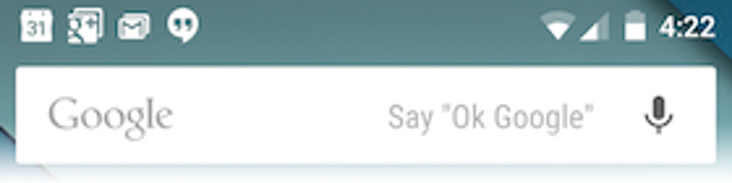
- Status bar: the small icon only.
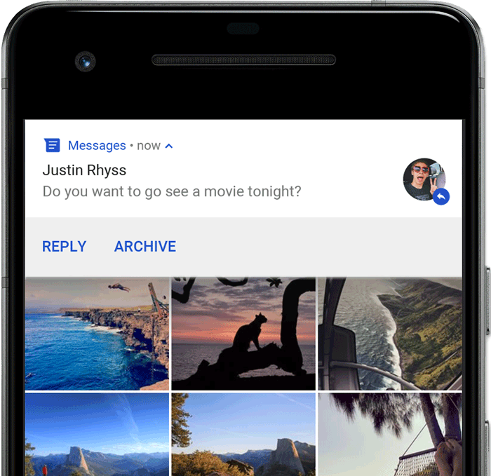
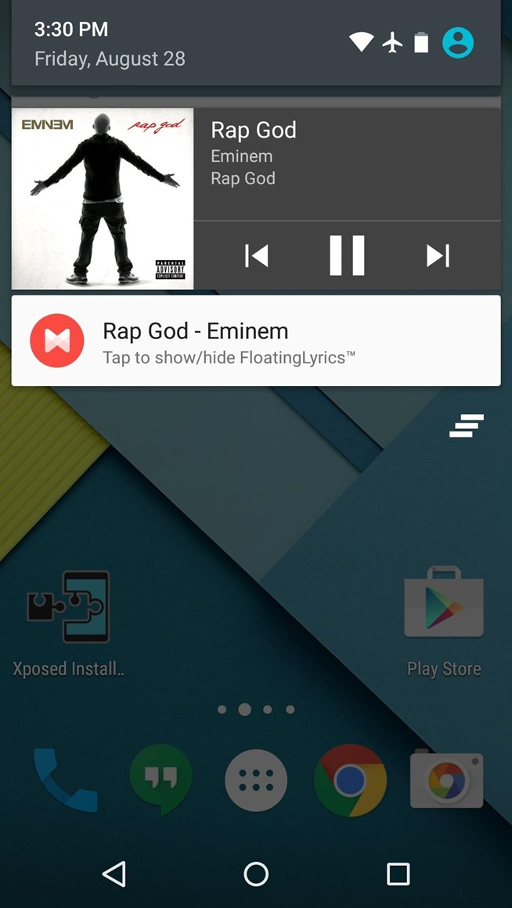
- Notification drawer: the full notification, collapsed or expanded.
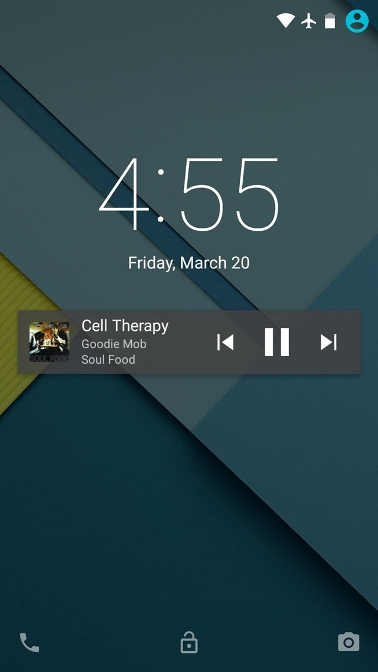
- Lock screen: as much as the visibility setting and the user allow.
- Heads-up: a floating banner for high-importance notifications.
- Also an app icon badge (a dot on the launcher icon), Wear OS watches and Android Auto.
Because the system draws it, your notification is not composed with Compose and doesn't live in your process. That explains most of the restrictions below.
Anatomy of a standard notification
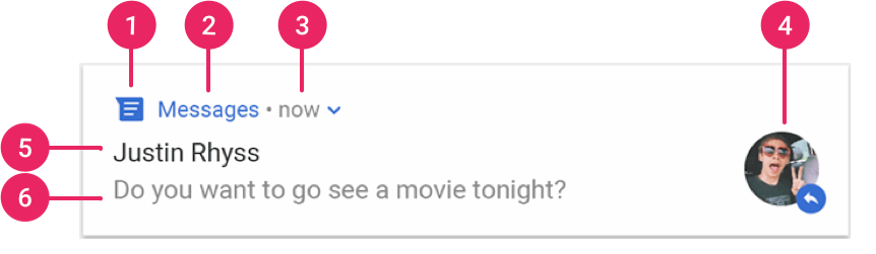
- Small icon, required:
setSmallIcon(). A monochrome vector, white shapes on a transparent background. Android Studio: New → Image Asset → Notification Icons. - App name, added by the system.
- Timestamp:
setWhen(), hidden withsetShowWhen(false), or a running timer withsetUsesChronometer(true). - Large icon, optional:
setLargeIcon(), typically a contact photo. - Title:
setContentTitle(). - Text:
setContentText().
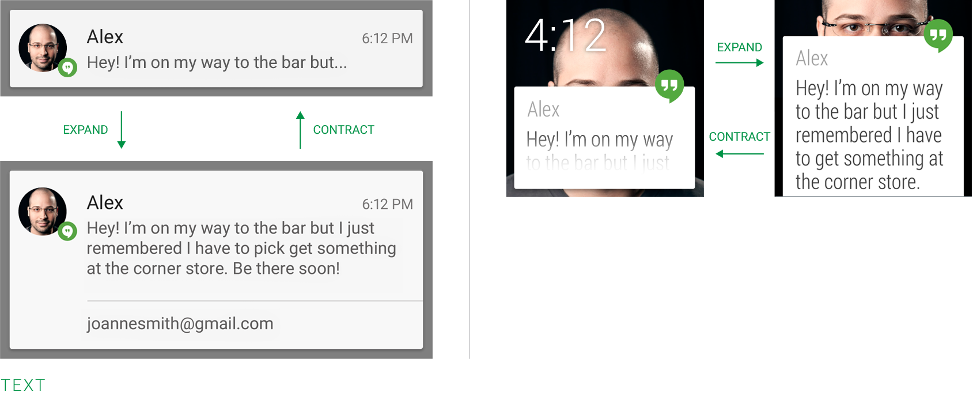
Up to three action buttons are shown below the content in the expanded state:
Channels
Every notification belongs to a channel, a category that the user controls in system settings: sound, vibration, lock screen, on or off. Channels are mandatory since Android 8. With minSdk 30 you create them without any version check.
fun createChannel(context: Context) {
    val channel = NotificationChannelCompat
        .Builder("tracking", NotificationManagerCompat.IMPORTANCE_LOW)
        .setName(context.getString(R.string.channel_tracking))                  // shown in settings
        .setDescription(context.getString(R.string.channel_tracking_description))
        .setShowBadge(false)
        .build()
    NotificationManagerCompat.from(context).createNotificationChannel(channel)
}
Creating a channel that already exists does nothing, so call it at app start or right before the first notification.
| Importance | Behaviour | Use for |
|---|---|---|
IMPORTANCE_HIGH | sound + heads-up banner | messages, alarms |
IMPORTANCE_DEFAULT | sound, no banner | most notifications |
IMPORTANCE_LOW | silent, visible in status bar and drawer | ongoing trackers, progress |
IMPORTANCE_MIN | silent, no status bar icon, collapsed at the bottom | background info (not for foreground services) |
A tracker updated every second must be LOW. Anything louder would beep on every update.
After the channel is created, your code can change only its name and description. Importance, sound and vibration belong to the user from then on, and calling createNotificationChannel again with another importance has no effect. While developing, uninstall the app or use a new channel id to try a different importance.
Tutorials wrap channel creation in if (Build.VERSION.SDK_INT >= Build.VERSION_CODES.O) and set setPriority(NotificationCompat.PRIORITY_HIGH). Priority only matters on Android 7 and older. From Android 8 on, the channel's importance decides.
Permission
On Android 13+ posting notifications needs the runtime permission POST_NOTIFICATIONS (lecture 12). If the user denies it, notify() silently does nothing. The app must keep working, and a foreground service still runs, but its notification is only visible in the system's Task Manager.
<uses-permission android:name="android.permission.POST_NOTIFICATIONS" />
Check right before posting:
fun showFirst(context: Context) {
    val notification = NotificationCompat.Builder(context, "tracking")
        .setSmallIcon(R.drawable.ic_notification)
        .setContentTitle("Session in progress")
        .setContentText("1500 m · 6:23 min/km")
        .build()

    if (Build.VERSION.SDK_INT < Build.VERSION_CODES.TIRAMISU ||
        ContextCompat.checkSelfPermission(context, Manifest.permission.POST_NOTIFICATIONS) ==
        PackageManager.PERMISSION_GRANTED
    ) {
        NotificationManagerCompat.from(context).notify(1, notification)
    }
}
POST_NOTIFICATIONS doesn't exist on Android 11 and 12, which are inside our minSdk 30 range. There, checkSelfPermission for it returns PERMISSION_DENIED, and an unguarded check would hide your notification on every older phone. NotificationManagerCompat.areNotificationsEnabled() is the version-independent "did the user switch us off" check. Lint still wants an explicit permission check next to notify().
The id (1 above) identifies the notification. Posting again with the same id updates it in place, a new id creates a second notification, and cancel(id) removes it.
Builder essentials
| Call | What it does | SportMap |
|---|---|---|
setSmallIcon | mandatory monochrome icon | compass/flag icon |
setContentTitle, setContentText | title and text, also used by accessibility and the lock screen | "Session in progress", summary |
setContentIntent | what a tap on the notification does | open the map |
addAction | up to three buttons | Stop |
setOngoing(true) | not removable by swipe (see below) | yes |
setOnlyAlertOnce(true) | sound/vibration only on first post, not on updates | yes |
setSilent(true) | never alert, regardless of channel | yes |
setCategory(CATEGORY_WORKOUT) | hint for ranking and Do-Not-Disturb | yes |
setVisibility(...) | how much to show on the lock screen | VISIBILITY_PUBLIC |
setWhen + setUsesChronometer(true) | header shows a running timer, no updates needed | session start time |
setForegroundServiceBehavior(FOREGROUND_SERVICE_IMMEDIATE) | show a service notification without the 10 s delay (lecture 15) | yes |
setAutoCancel(true) | remove when tapped | no, it's a status notification |
Since Android 14 users can swipe away setOngoing(true) notifications too, except while the phone is locked and via "Clear all". The service keeps running, and the next update re-posts the notification. Design for that rather than fighting it.
PendingIntent
A notification can't call your code directly. The system process shows it, and a tap happens there. You give the system a PendingIntent, a token that says "when this is triggered, send this Intent as if my app sent it", even if your app is in the background by then.
| Factory | Delivers the intent to |
|---|---|
PendingIntent.getActivity | an activity, which starts it or brings it to the front |
PendingIntent.getBroadcast | a BroadcastReceiver |
PendingIntent.getService / getForegroundService | a service's onStartCommand |
Rules:
- Mutability flag is mandatory (Android 12+). Use
FLAG_IMMUTABLEunless the system must fill in data (direct reply, bubbles), and addFLAG_UPDATE_CURRENTto refresh the extras of an existing token. - Explicit intents. Name the component (
Intent(context, MainActivity::class.java)) or at least the package (setPackage(context.packageName)), so no other app can receive it. Android 14 blocks implicit intents inside mutablePendingIntents. - Identity. Two
PendingIntents are the same token when the request code and the intent's action, data, type, component and categories are equal. Extras don't count. Two buttons that differ only in an extra would overwrite each other, so give each one its own action (and request code).
Content intent: open the map
private fun activityIntent(action: String, requestCode: Int): PendingIntent =
    PendingIntent.getActivity(
        context,
        requestCode,
        Intent(context, MainActivity::class.java).setAction(action),
        PendingIntent.FLAG_IMMUTABLE or PendingIntent.FLAG_UPDATE_CURRENT
    )

// .setContentIntent(activityIntent(TrackingActions.SHOW_MAP, RC_SHOW_MAP))
MainActivity is declared with android:launchMode="singleTop". If it's already on top, Android delivers the intent to onNewIntent() instead of stacking a second copy. Lecture 11 shows how the action becomes navigation state, and lecture 15 uses it for the stop confirmation.
Action buttons
private fun broadcastIntent(action: String, requestCode: Int): PendingIntent =
    PendingIntent.getBroadcast(
        context,
        requestCode,
        Intent(action).setPackage(context.packageName),     // only our app receives it
        PendingIntent.FLAG_IMMUTABLE or PendingIntent.FLAG_UPDATE_CURRENT
    )

val addCpAction = NotificationCompat.Action.Builder(
    R.drawable.ic_flag, "Add CP", broadcastIntent(TrackingActions.ADD_CP, RC_ADD_CP)
).build()

// .addAction(addCpAction)
The action strings live in one place, shared by the notification, the service and the UI:
object TrackingActions {
    const val START = "ee.taltech.sportmap.action.START"
    const val STOP = "ee.taltech.sportmap.action.STOP"
    const val ADD_CP = "ee.taltech.sportmap.action.ADD_CP"
    const val ADD_WP = "ee.taltech.sportmap.action.ADD_WP"
    const val SHOW_MAP = "ee.taltech.sportmap.action.SHOW_MAP"
    const val CONFIRM_STOP = "ee.taltech.sportmap.action.CONFIRM_STOP"
}
Receiving the clicks: BroadcastReceiver recap
From lecture 02: a BroadcastReceiver gets Intents sent with sendBroadcast. It can be declared in the manifest or registered at runtime with a context. What changed since then:
- Since Android 8, implicit broadcasts don't reach manifest-declared receivers. Intents with a package or component do.
- Since Android 14 (targetSdk 34+), runtime registration must say whether other apps may send to the receiver.
ContextCompat.registerReceivertakes the flag on every API level. onReceiveruns on the main thread with a budget of about 10 s. Do quick work there and hand anything longer to a coroutine.
val receiver = object : BroadcastReceiver() {
    override fun onReceive(context: Context, intent: Intent) {
        when (intent.action) {
            TrackingActions.ADD_CP -> { /* add a checkpoint */ }
            TrackingActions.ADD_WP -> { /* add a waypoint */ }
        }
    }
}

val filter = IntentFilter().apply {
    addAction(TrackingActions.ADD_CP)
    addAction(TrackingActions.ADD_WP)
}
ContextCompat.registerReceiver(context, receiver, filter, ContextCompat.RECEIVER_NOT_EXPORTED)
// ... later: context.unregisterReceiver(receiver)
RECEIVER_NOT_EXPORTED means only our own app, including PendingIntents our app created, can trigger it. In SportMap this receiver lives inside the tracking service (lecture 15). The service owns the session, and the final spec asks for exactly that: "GPS listener and notification intents broadcast listener has to be implemented in service".
Lock screen
What is shown
setVisibility(...) | On a secure lock screen |
|---|---|
VISIBILITY_PUBLIC | full content |
VISIBILITY_PRIVATE (default) | icon and app name, or the setPublicVersion you provide |
VISIBILITY_SECRET | nothing |
Training statistics aren't secret, so SportMap uses PUBLIC. If a notification shows something sensitive (say, coordinates of the user's home), use PRIVATE with a sanitised public version:
val publicVersion = NotificationCompat.Builder(context, "tracking")
    .setSmallIcon(R.drawable.ic_notification)
    .setContentTitle("SportMap session in progress")
    .build()

val notification = NotificationCompat.Builder(context, "tracking")
    .setSmallIcon(R.drawable.ic_notification)
    .setContentTitle("Session in progress")
    .setContentText("Lat 59.395, Lon 24.664")
    .setVisibility(NotificationCompat.VISIBILITY_PRIVATE)
    .setPublicVersion(publicVersion)
    .build()
The user's settings ("hide sensitive content", "don't show notifications on lock screen") always win over your choice.
What works without unlocking
| Button / tap target | Locked phone |
|---|---|
broadcast or service PendingIntent | runs immediately, no unlock |
activity PendingIntent | system asks the user to unlock first, then starts the activity |
action with setAuthenticationRequired(true) | unlock first, for any kind of PendingIntent (Android 12+, ignored on Android 11) |
That maps directly onto the final project requirements:
- Add CP / Add WP: broadcasts, usable from the lock screen with gloves on.
- Stop: an activity
PendingIntentwith actionCONFIRM_STOP. The user must unlock, the app opens, and the map screen asks "Stop session?", which covers both "ask for confirmation" and "not from the lock screen". - Start: not offered in the notification at all.
val stopAction = NotificationCompat.Action.Builder(
    R.drawable.ic_stop,
    context.getString(R.string.stop),
    activityIntent(TrackingActions.CONFIRM_STOP, RC_CONFIRM_STOP)
).setAuthenticationRequired(true).build()      // belt and braces on Android 12+
A receiver can't show a confirmation dialog, and setAuthenticationRequired is ignored on Android 11 (minSdk 30). Every Android 11 user could then end the session from a pocket. The activity intent needs an unlock on every version.
Custom layout with RemoteViews
The standard template has a title and a text line. SportMap wants three sections of three values each, mirroring the UI under the map. For that you need a custom layout, built in XML and wrapped in RemoteViews.
RemoteViews is not a view. It's a description of a view hierarchy plus a list of operations ("set this text", "on click send this PendingIntent"). It's sent to SystemUI, which inflates it in its own process. Hence the limits:
- Layouts:
FrameLayout,LinearLayout,RelativeLayout,GridLayout. - Widgets:
TextView,Button,ImageButton,ImageView,ProgressBar,Chronometer,AnalogClock,TextClock,ViewFlipper,ListView,GridView,StackView,AdapterViewFlipper, and since Android 12 alsoCheckBox,RadioButton,RadioGroupandSwitch. - Not allowed:
ConstraintLayout, your own view classes, subclasses of the above, AppCompat attributes and Compose. - Height: collapsed as little as 48dp, heads-up 88dp, expanded 252dp. Three rows of numbers don't fit into 48dp, so you provide two layouts.
- From Android 12 the system always wraps custom content in the standard frame: icon, app name, time and the action row.
NotificationCompat.DecoratedCustomViewStyle()gives the same result on all versions.
Your HW1 XML skills are exactly what's needed here.
Layouts
The collapsed layout is one line of summary plus the two buttons:
<!-- res/layout/notification_tracking_small.xml -->
<LinearLayout xmlns:android="http://schemas.android.com/apk/res/android"
    xmlns:tools="http://schemas.android.com/tools"
    android:layout_width="match_parent"
    android:layout_height="48dp"
    android:gravity="center_vertical"
    android:orientation="horizontal">

    <TextView
        android:id="@+id/summary"
        android:layout_width="0dp"
        android:layout_height="wrap_content"
        android:layout_weight="1"
        android:maxLines="2"
        style="@style/TextAppearance.Compat.Notification.Line2" />

    <ImageButton
        android:id="@+id/buttonCp"
        android:layout_width="40dp"
        android:layout_height="40dp"
        android:background="@null"
        android:contentDescription="@string/add_checkpoint"
        android:src="@drawable/ic_flag"
        android:tint="@color/notification_icon"
        tools:ignore="UseAppTint" />

    <ImageButton
        android:id="@+id/buttonWp"
        android:layout_width="40dp"
        android:layout_height="40dp"
        android:background="@null"
        android:contentDescription="@string/add_waypoint"
        android:src="@drawable/ic_waypoint"
        android:tint="@color/notification_icon"
        tools:ignore="UseAppTint" />
</LinearLayout>
The expanded layout mirrors the three sections. Section 3 (wpDistance, wpDirect, wpPace, buttonWp) is identical to section 2:
<!-- res/layout/notification_tracking.xml -->
<LinearLayout xmlns:android="http://schemas.android.com/apk/res/android"
    xmlns:tools="http://schemas.android.com/tools"
    android:layout_width="match_parent"
    android:layout_height="wrap_content"
    android:baselineAligned="false"
    android:orientation="horizontal">

    <!-- Section 1: overall -->
    <LinearLayout
        android:layout_width="0dp"
        android:layout_height="wrap_content"
        android:layout_weight="1"
        android:gravity="center_horizontal"
        android:orientation="vertical">

        <TextView
            android:layout_width="wrap_content"
            android:layout_height="40dp"
            android:gravity="center"
            android:text="@string/section_overall"
            style="@style/TextAppearance.Compat.Notification.Title" />

        <TextView
            android:id="@+id/overallDistance"
            android:layout_width="wrap_content"
            android:layout_height="wrap_content"
            style="@style/TextAppearance.Compat.Notification.Line2" />

        <Chronometer
            android:id="@+id/overallTime"
            android:layout_width="wrap_content"
            android:layout_height="wrap_content"
            style="@style/TextAppearance.Compat.Notification.Line2" />

        <TextView
            android:id="@+id/overallPace"
            android:layout_width="wrap_content"
            android:layout_height="wrap_content"
            style="@style/TextAppearance.Compat.Notification.Line2" />
    </LinearLayout>

    <!-- Section 2: since the last checkpoint -->
    <LinearLayout
        android:layout_width="0dp"
        android:layout_height="wrap_content"
        android:layout_weight="1"
        android:gravity="center_horizontal"
        android:orientation="vertical">

        <ImageButton
            android:id="@+id/buttonCp"
            android:layout_width="40dp"
            android:layout_height="40dp"
            android:background="@null"
            android:contentDescription="@string/add_checkpoint"
            android:src="@drawable/ic_flag"
            android:tint="@color/notification_icon"
            tools:ignore="UseAppTint" />

        <TextView
            android:id="@+id/cpDistance"
            android:layout_width="wrap_content"
            android:layout_height="wrap_content"
            style="@style/TextAppearance.Compat.Notification.Line2" />

        <TextView
            android:id="@+id/cpDirect"
            android:layout_width="wrap_content"
            android:layout_height="wrap_content"
            style="@style/TextAppearance.Compat.Notification.Line2" />

        <TextView
            android:id="@+id/cpPace"
            android:layout_width="wrap_content"
            android:layout_height="wrap_content"
            style="@style/TextAppearance.Compat.Notification.Line2" />
    </LinearLayout>

    <!-- Section 3: since the waypoint - same as section 2 with wp* ids and buttonWp -->
</LinearLayout>
Notes:
TextAppearance.Compat.Notification.Title/.Line2(from androidx.core) follow the system's notification colours, light or dark. Don't hard-code text colours.- For icon tint, use a colour resource with a
values-nightvariant (#DE000000/#DEFFFFFF). SystemUI resolves your resources with the current night mode.android:tintis correct here because RemoteViews are inflated without AppCompat, hence thetools:ignorefor the AppCompat lint rule. - A
Chronometerticks on its own in SystemUI, so the elapsed time is always live even between your updates. - No background images. They make text unreadable on some themes.
The TrackingNotification class
All notification code lives in one injectable class. The service (lecture 15) only calls createChannel() and build(state).
class TrackingNotification @Inject constructor(
    @ApplicationContext private val context: Context
) {
    companion object {
        const val CHANNEL_ID = "tracking"
        const val NOTIFICATION_ID = 1

        private const val RC_SHOW_MAP = 1
        private const val RC_CONFIRM_STOP = 2
        private const val RC_ADD_CP = 3
        private const val RC_ADD_WP = 4
    }

    fun createChannel() {
        val channel = NotificationChannelCompat
            .Builder(CHANNEL_ID, NotificationManagerCompat.IMPORTANCE_LOW)
            .setName(context.getString(R.string.channel_tracking))
            .setDescription(context.getString(R.string.channel_tracking_description))
            .setShowBadge(false)
            .build()
        NotificationManagerCompat.from(context).createNotificationChannel(channel)
    }

    fun build(state: TrackingState): Notification {
        val stopAction = NotificationCompat.Action.Builder(
            R.drawable.ic_stop,
            context.getString(R.string.stop),
            activityIntent(TrackingActions.CONFIRM_STOP, RC_CONFIRM_STOP)
        ).setAuthenticationRequired(true).build()

        return NotificationCompat.Builder(context, CHANNEL_ID)
            .setSmallIcon(R.drawable.ic_notification)
            .setContentTitle(context.getString(R.string.notification_title))
            .setContentText(summary(state))                 // accessibility + fallback
            .setStyle(NotificationCompat.DecoratedCustomViewStyle())
            .setCustomContentView(smallView(state))
            .setCustomBigContentView(bigView(state))
            .setContentIntent(activityIntent(TrackingActions.SHOW_MAP, RC_SHOW_MAP))
            .addAction(stopAction)
            .setOngoing(true)
            .setOnlyAlertOnce(true)
            .setSilent(true)
            .setCategory(NotificationCompat.CATEGORY_WORKOUT)
            .setVisibility(NotificationCompat.VISIBILITY_PUBLIC)
            .setForegroundServiceBehavior(NotificationCompat.FOREGROUND_SERVICE_IMMEDIATE)
            .apply {
                state.startedAt?.let {
                    setWhen(it.toEpochMilli())
                    setShowWhen(true)
                    setUsesChronometer(true)
                }
            }
            .build()
    }

    private fun summary(state: TrackingState): String =
        "${formatDistance(state.overall.distanceM)} · ${formatPace(state.overall.paceSecPerKm)} min/km"

    private fun smallView(state: TrackingState) =
        RemoteViews(context.packageName, R.layout.notification_tracking_small).apply {
            setTextViewText(R.id.summary, summary(state))
            setOnClickPendingIntent(R.id.buttonCp, broadcastIntent(TrackingActions.ADD_CP, RC_ADD_CP))
            setOnClickPendingIntent(R.id.buttonWp, broadcastIntent(TrackingActions.ADD_WP, RC_ADD_WP))
        }

    private fun bigView(state: TrackingState) =
        RemoteViews(context.packageName, R.layout.notification_tracking).apply {
            setTextViewText(R.id.overallDistance, formatDistance(state.overall.distanceM))
            setTextViewText(R.id.overallPace, formatPace(state.overall.paceSecPerKm))
            val elapsedMs = state.startedAt?.let { Duration.between(it, Instant.now()).toMillis() } ?: 0L
            setChronometer(R.id.overallTime, SystemClock.elapsedRealtime() - elapsedMs, null, state.isTracking)

            setSection(state.fromCheckpoint, R.id.cpDistance, R.id.cpDirect, R.id.cpPace)
            setSection(state.fromWaypoint, R.id.wpDistance, R.id.wpDirect, R.id.wpPace)

            setOnClickPendingIntent(R.id.buttonCp, broadcastIntent(TrackingActions.ADD_CP, RC_ADD_CP))
            setOnClickPendingIntent(R.id.buttonWp, broadcastIntent(TrackingActions.ADD_WP, RC_ADD_WP))
        }

    private fun RemoteViews.setSection(stats: SectionStats?, distanceId: Int, directId: Int, paceId: Int) {
        setTextViewText(distanceId, stats?.let { formatDistance(it.distanceM) } ?: "-")
        setTextViewText(directId, stats?.let { formatDistance(it.directM) } ?: "-")
        setTextViewText(paceId, formatPace(stats?.paceSecPerKm))
    }

    private fun activityIntent(action: String, requestCode: Int): PendingIntent =
        PendingIntent.getActivity(
            context, requestCode,
            Intent(context, MainActivity::class.java).setAction(action),
            PendingIntent.FLAG_IMMUTABLE or PendingIntent.FLAG_UPDATE_CURRENT
        )

    private fun broadcastIntent(action: String, requestCode: Int): PendingIntent =
        PendingIntent.getBroadcast(
            context, requestCode,
            Intent(action).setPackage(context.packageName),
            PendingIntent.FLAG_IMMUTABLE or PendingIntent.FLAG_UPDATE_CURRENT
        )
}
formatDistance and formatPace are the formatters from lecture 13. The chronometer's base is in the SystemClock.elapsedRealtime() time base, not wall-clock time. That's why the elapsed duration is subtracted from "now".
The CP/WP buttons sit inside the custom layout, as in the UI under the map, and Stop is a standard action in the row below. You could do it the other way round. What matters is which kind of PendingIntent each one uses.
Updating the notification
The spec says "after every position update". Post the same id again with a freshly built notification:
NotificationManagerCompat.from(context).notify(TrackingNotification.NOTIFICATION_ID, trackingNotification.build(state))
- Rebuild the whole notification, including new
RemoteViews. Don't keep and mutate old ones. setOnlyAlertOnce(true)and the LOW channel keep updates silent.- Rate limit: Android drops updates when a single notification is updated too often ("many in less than one second", per the docs), and only one sound per second is allowed per app. Throttle to about one update per second. With a 1–2 s GPS interval that is "every position" anyway. Lecture 15 shows the throttling with a
StateFlow. - The chronometer and
setUsesChronometerkeep the time running between updates.
Android 16: Live Updates
Android 16 (API 36) adds Live Updates: ongoing notifications that the system promotes to the top of the drawer and the lock screen, with a status-bar chip. They're meant for navigation, rides, calls and deliveries, so a running session qualifies.
val liveUpdate = NotificationCompat.Builder(context, CHANNEL_ID)
    .setSmallIcon(R.drawable.ic_notification)
    .setContentTitle("Session in progress")              // required
    .setContentText("$distance · 6:23 min/km")
    .setOngoing(true)                                    // required
    .setRequestPromotedOngoing(true)                     // ask for promotion
    .setShortCriticalText(distance)                      // text in the status bar chip
    .build()
Requirements: <uses-permission android:name="android.permission.POST_PROMOTED_NOTIFICATIONS" />, ongoing, a content title, a channel that isn't IMPORTANCE_MIN, and one of the standard styles (default, BigTextStyle, CallStyle, ProgressStyle, MetricStyle). No custom content view. NotificationCompat.ProgressStyle can show progress with coloured segments and points. Users can demote or disable Live Updates. Check with NotificationManager.canPostPromotedNotifications() (API 36), and send them to Settings.ACTION_MANAGE_APP_PROMOTED_NOTIFICATIONS.
The final project requires a custom layout, and custom layouts can't be promoted. If you want both, build the custom notification by default and, on API 36+ with promotion allowed, a standard-template variant with setShortCriticalText. That's a bonus, not a requirement.
Testing notifications
- Use a real phone with a PIN lock screen. Lock it and press CP/WP (they must work), then Stop (it must ask to unlock and then show the confirmation).
- Switch dark mode and font size. The
TextAppearance.Compat.Notification.*styles must stay readable. - Deny
POST_NOTIFICATIONS(adb shell pm revoke ee.taltech.sportmap android.permission.POST_NOTIFICATIONS). The app must not crash. - Use an Android 11 emulator (minSdk), where
setAuthenticationRequireddoes nothing. adb shell dumpsys notification --noredactlists posted notifications with channel, flags and actions.- Long-press the notification → settings shows your channel as the user sees it.
In the final project
TrackingNotificationbuilds the sticky lock-screen notification: a custom layout with the three sections (overall, since CP, since WP), mirroring the UI under the map, with collapsed and expanded variants.- CP and WP buttons are broadcasts (
ADD_CP,ADD_WP), received by the receiver in the service. They work on the lock screen. - Stop is an activity intent (
CONFIRM_STOP): unlock, open the app, confirm. Start is not in the notification. - Content tap (
SHOW_MAP) opens the map.MainActivityissingleTop. - The notification is rebuilt after every location update, throttled to about once per second (lecture 15).
- The channel is
IMPORTANCE_LOW, the notification is silent, ongoing andVISIBILITY_PUBLIC.
Self preparation QA
- Why does a tracking notification use an
IMPORTANCE_LOWchannel? — It's updated every second. Higher importance would make sound or show heads-up banners. LOW is silent but still visible in the status bar, drawer and lock screen. - Why can't you change a channel's importance in code after creating it? — Once created, the channel's behaviour belongs to the user. Code can change only name and description, so you need a new channel id (or a reinstall) for a different importance.
- What happens if
POST_NOTIFICATIONSis denied, and why must its check be version-guarded? —notify()posts nothing, and a foreground service runs with its notification visible only in Task Manager. The permission doesn't exist below Android 13, so checking it there returns denied and would hide notifications on Android 11–12. - What is a
PendingIntentand why isFLAG_IMMUTABLEthe default choice? — A token that lets the system send an intent later on your app's behalf. Immutable means nobody can modify the wrapped intent, which is only needed for features like direct reply. - Two notification buttons have the same action and request code but different extras. What happens? — They're the same
PendingIntentbecause extras aren't part of its identity, so one overwrites the other. Use different actions or request codes. - Which notification buttons work on a locked phone? — Broadcast and service
PendingIntents run immediately. ActivityPendingIntents and actions withsetAuthenticationRequired(true)(Android 12+) require unlocking first. - How does SportMap prevent stopping a session from the lock screen and still ask for confirmation? — Stop is an activity
PendingIntent(CONFIRM_STOP). The user must unlock,MainActivityopens, and the map screen shows the confirmation dialog before the service is told to stop. - Why do custom notifications use
RemoteViewsand not Compose? — The notification is inflated in SystemUI's process.RemoteViewsis a serialisable description limited to a set of framework layouts and widgets. Compose and custom views can't be sent across. - Why does SportMap need two custom layouts? — The collapsed notification can be as small as 48dp, too little for three sections. The expanded view (up to 252dp) holds the full statistics.
- Why can't the SportMap notification become an Android 16 Live Update? — Live Updates must use a standard style and must not set a custom content view, and the project requires a custom layout.